
New to String Catalog in Xcode? Learn how String Catalog works and how to get started: Localize Your App with String Catalog.
String Catalog is very convenient when working with localizable strings. If you’re using SwiftUI and default UI components like Text and Button, String Catalog automatically pulls your strings, and all that’s left is to translate them into any language your app supports.
If you’re working on a large app with a big codebase, this can easily get out of hand. Your strings end up scattered in your codebase and it gets harder to find and maintain them.
String Catalog has an option to locate a String within your project, but even then, they are still all over the place.
One way to fix this is to add all strings in a single file while making sure they still get pulled into String Catalog.
Example SwiftUI App
We’ll use an example SwiftUI app with strings in-place and String Catalog already added to the project.
The app looks like this when run:
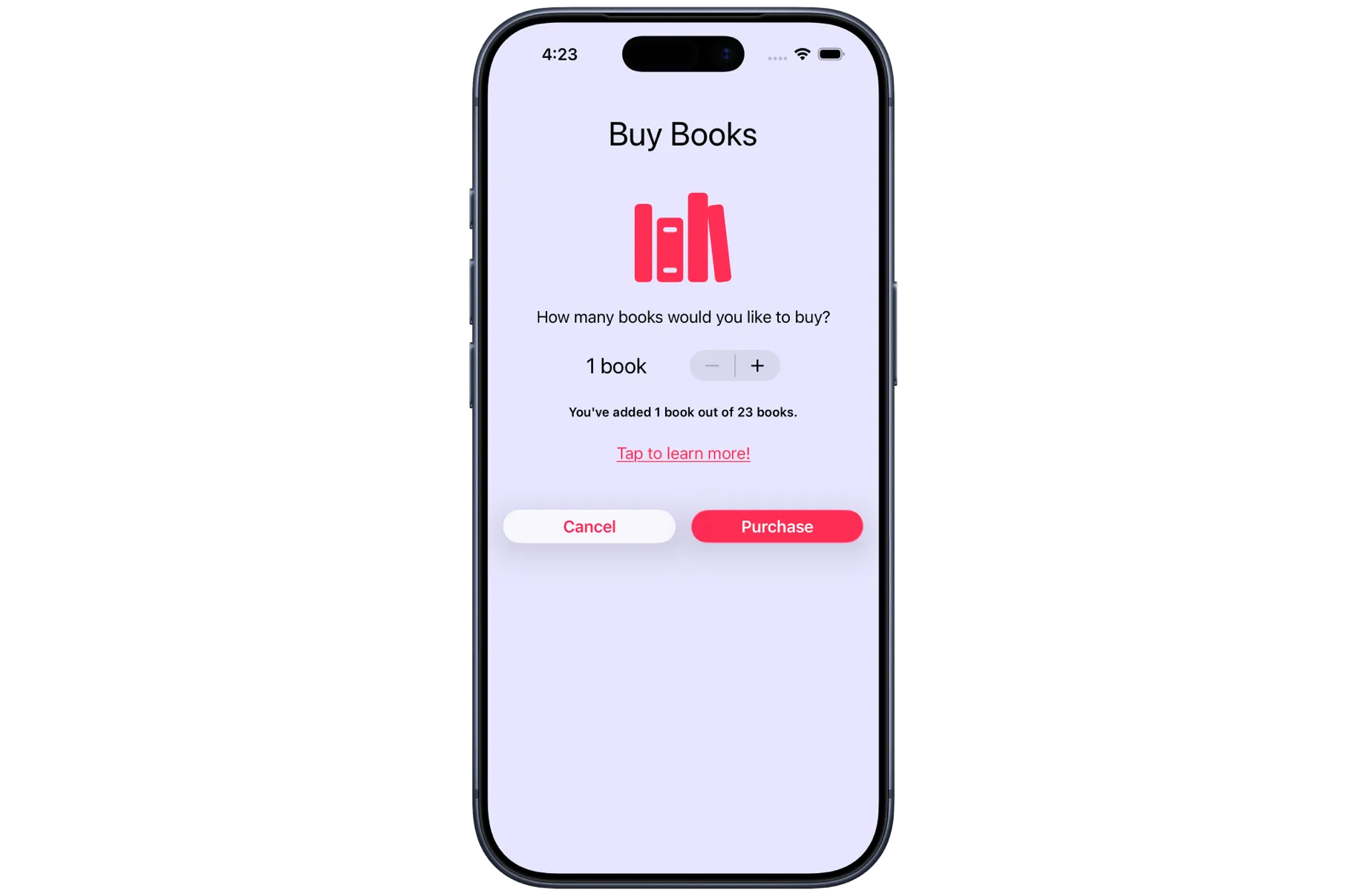
The code is as follows:
import SwiftUI

struct ContentView: View {
    @State private var books = 1
    @State private var totalBooks = 23

    var cancelOrderButton = String(
        localized: "buy.cancel_order.button",
        defaultValue: "Cancel",
        comment: "Cancels a purchase order"
    )

    var body: some View {
        VStack {
            Text(verbatim: "Buy Books")
                .font(.largeTitle)
                .padding(32)

            Image(systemName: "books.vertical.fill")
                .resizable()
                .scaledToFit()
                .frame(width: 100)
                .foregroundStyle(.tint)

            Text("How many books would you like to buy?")
                .padding()

            Stepper("\(books) book", value: $books, in: 1...23)
                .frame(width: 200)
                .font(.title2)

            Text("You've added \(books) out of \(totalBooks) books.")
                .padding()
                .bold()
                .font(.footnote)

            Link(destination: URL(string: "https://www.apple.com")!) {
                Text("Tap to learn more!")
                    .underline()
            }
            .padding(.bottom, 40)

            HStack(spacing: 16) {
                Button {
                    // action
                } label: {
                    Text(cancelOrderButton)
                }
                .buttonStyle(.glass)

                Button("Purchase") {
                    // action
                }
                .buttonStyle(.glassProminent)
            }
        }
        .frame(maxWidth: .infinity, maxHeight: .infinity, alignment: .top)
        .tint(.pink)
        .background(Color.indigo.opacity(0.15))
    }
}
It’s a simple app, but it will serve the purpose.
We’ll remove all in-place strings out of the ContentView into a new file, making sure String Catalog doesn’t remove any of our localizable strings and everything stays the same:
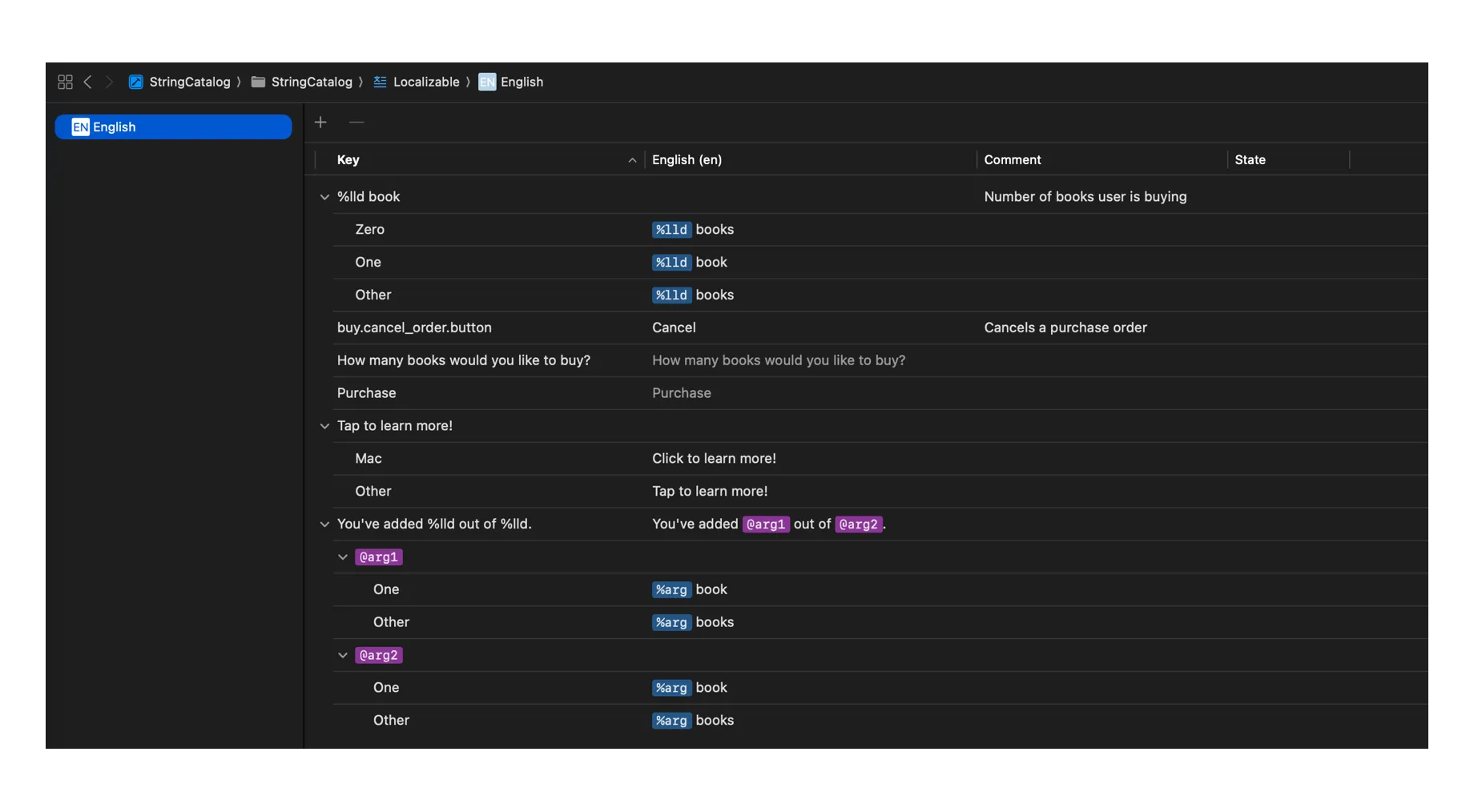
Creating an Enum for Localized Strings
Create a new L10n enum with a nested Buy enum:
enum L10n {
	// Buy Screen
    enum Buy {
        ...
    }
}
I use an enum because it clearly models a namespace and avoids accidental instantiation. You can use a struct as well, but an enum is clearer in this case.
I named it L10n - short for Localization. It saves a few characters when calling the strings later.
Structure the L10n enum in any way you like. Add all your strings directly or nested inside enums for different parts of your UI. I like to nest them per different screens, so we have a Buy enum for the buy screen. Another one would be settings or home, depends on your UI.
This is where we’ll add all the strings.
Non-localizable Strings
Not all strings are localizable. If you display your apps’ name, you don’t want it localized. You might still want it outside of the View with other strings in a single place.
In this case, create a new Constants enum and add all the non-localizable strings, including SF Symbols:
enum Constants {
    enum Buy {
        static let title = String("Buy Books")
        static let url = String("https://www.apple.com")
    }

    enum SFSymbols {
        static let booksImage = "books.vertical.fill"
    }
}
Then, in the code, update those strings to:
Text(verbatim: Constants.Buy.title)

Image(systemName: Constants.SFSymbols.booksImage)

Link(destination: URL(string: Constants.Buy.url)!) {
	...
}
Now you can easily glance and see which strings are not localized.
Localizable Strings
String literals in Text, Stepper, Button and other UI components are localized by default. The initializer interprets the string as a localization key of type LocalizedStringKey and searches for the key in the table you specify, or in the default table if you don’t specify one.
When creating localizable strings outside of the UI component, initialize it with String(localized:). You can also define optional parameters like defaultValue and comment if needed to provide more context for the translators.
Create a localized String:
enum L10n {
    enum Buy {
        static let userQuestion = String(
            localized: "How many books would you like to buy?"
        )
        static let link = String(
            localized: "Tap to learn more!"
        )
    }
}
Then in the View, change the strings to call the new ones from L10n:
Text(L10n.Buy.userQuestion)

Link(destination: URL(string: Constants.Buy.url)!) {
	Text(L10n.Buy.link)
}
Single Parameter Dynamic Strings
When you need to handle dynamic strings, create the same String localized initializer, but with a custom function so you can pass the argument inside:
enum L10n {
    enum Buy {
        static func totalBooksToBuy(_ books: Int) -> String {
            String(
                localized: "\(books) book",
            )
        }
    }
}
Then update the String in the View:
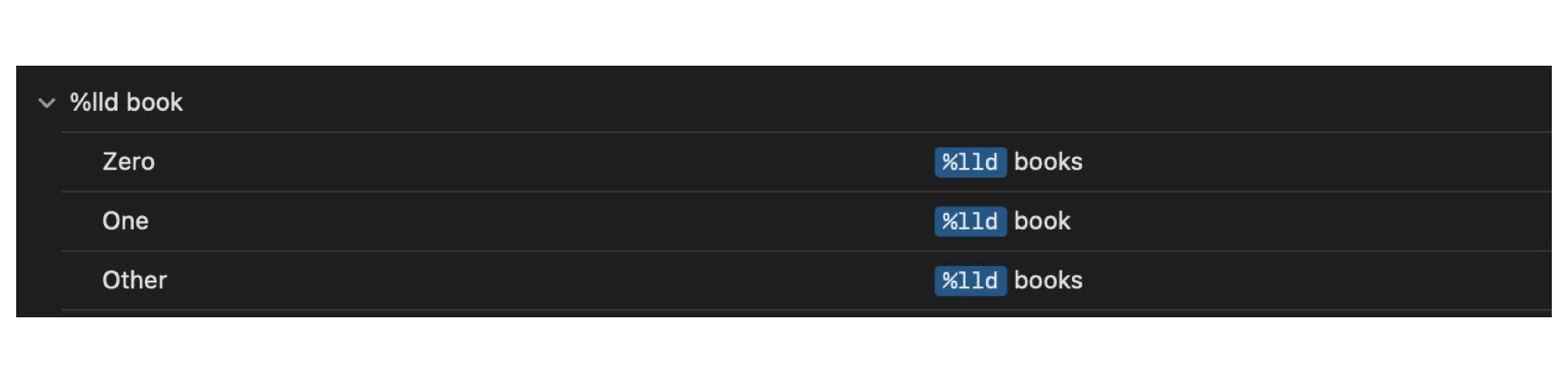
Stepper(L10n.Buy.totalBooksToBuy(books), value: $books, in: 1...23)The above String shows as %lld book in the String Catalog, where %lld is the argument:
Multi Parameter Dynamic Strings
Create the localized String the same way, but with two parameters:
enum L10n {
    enum Buy {
        static func booksAdded(_ books: Int, outOf total: Int) -> String {
            String(
                localized: "You've added \(books) out of \(total).",
            )
        }
    }
}
Replace the String in the View:
Text(L10n.Buy.booksAdded(books, outOf: totalBooks))If you look at the defined String closely, it looks like this: "You've added \(books) out of \(total).". Notice how we didn’t add the word book in the String.
String Catalog shows strings with 2 or more dynamic parameters as @arg1, @arg, and so on. You need to add the word book to Vary by Plural localization to have it shown properly:
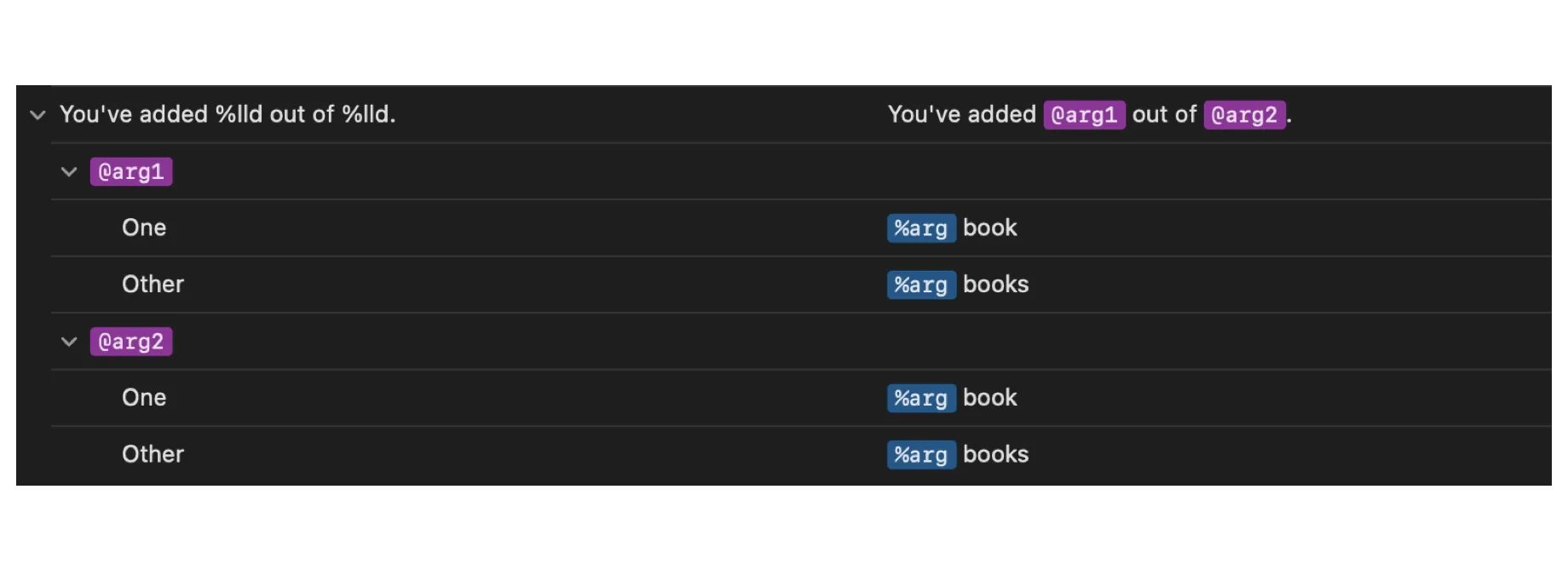
For strings with more parameters you also have an option to choose which arguments you want localized. You don’t have to localize all of them.
Custom Views
To localize strings passed inside custom views, define them as LocalizedStringResource. We’ll create a custom ActionButton and pass the label:
struct ActionButton: View {
    var label: LocalizedStringResource
    var action: () -> Void

    var body: some View {
        Button {
            action()
        } label: {
            Text(label)
                .fontWeight(.semibold)
                .frame(maxWidth: .infinity)
                .clipShape(.capsule)
        }
    }
}
This initializer also has the optional defaultValue and comment parameters, like the String(localized:) we used before:
enum L10n {
    enum Buy {
        static let cancelOrderButton = LocalizedStringResource(
            "buy.cancel_order.button",
            defaultValue: "Cancel",
            comment: "Cancels a purchase order"
        )
        static let purchaseButton = LocalizedStringResource(
            "buy.purchase.button",
            defaultValue: "Purchase",
            comment: "Completes the order"
        )
    }
}
It’s your decision how to name the keys for your strings. Whether you want to name them as buy.cancel_order.button or use the word Cancel. Default value is used in cases where the key is different than the actual word users will see.
Update the View with the new buttons and add the label strings:
ActionButton(label: L10n.Buy.cancelOrderButton) {
	// action
}
.buttonStyle(.glass)

ActionButton(label: L10n.Buy.purchaseButton) {
	// action
}
.buttonStyle(.glassProminent)
Final Code
Our View now has no strings inside:
import SwiftUI

struct SecondContentView: View {
    @State private var books = 1
    @State private var totalBooks = 23

    var body: some View {
        VStack {
            Text(verbatim: Constants.Buy.title)
                .font(.largeTitle)
                .padding(32)

            Image(systemName: Constants.SFSymbols.booksImage)
                .resizable()
                .scaledToFit()
                .frame(width: 100)
                .foregroundStyle(.tint)

            Text(L10n.Buy.userQuestion)
                .padding()

            Stepper(L10n.Buy.totalBooksToBuy(books), value: $books, in: 1...23)
                .frame(width: 200)
                .font(.title2)

            Text(L10n.Buy.booksAdded(books, outOf: totalBooks))
                .padding()
                .bold()
                .font(.footnote)

            Link(destination: URL(string: Constants.Buy.url)!) {
                Text(L10n.Buy.link)
                    .underline()
            }
            .padding(.bottom, 40)

            HStack(spacing: 16) {
                ActionButton(label: L10n.Buy.cancelOrderButton) {
                    // action
                }
                .buttonStyle(.glass)

                ActionButton(label: L10n.Buy.purchaseButton) {
                    // action
                }
                .buttonStyle(.glassProminent)
            }
            .padding(.horizontal)
        }
        .frame(maxWidth: .infinity, maxHeight: .infinity, alignment: .top)
        .tint(.pink)
        .background(Color.indigo.opacity(0.15), ignoresSafeAreaEdges: .all)
    }
}
The Constants and L10n enums hold all the strings as a single source of truth:
// MARK: Non-localized Strings (Constants)

enum Constants {
    enum Buy {
        static let title = String("Buy Books")
        static let url = String("https://www.apple.com")
    }

    enum SFSymbols {
        static let booksImage = "books.vertical.fill"
    }
}

// MARK: Localized Strings

enum L10n {
    enum Buy {
        static let userQuestion = String(
            localized: "How many books would you like to buy?"
        )
        static let cancelOrderButton = LocalizedStringResource(
            "buy.cancel_order.button",
            defaultValue: "Cancel",
            comment: "Cancels a purchase order"
        )
        static func totalBooksToBuy(_ books: Int) -> String {
            String(
                localized: "\(books) book",
            )
        }
        static func booksAdded(_ books: Int, outOf total: Int) -> String {
            String(
                localized: "You've added \(books) out of \(total).",
            )
        }
        static let link = String(
            localized: "Tap to learn more!"
        )
        static let purchaseButton = LocalizedStringResource(
            "buy.purchase.button",
            defaultValue: "Purchase",
            comment: "Completes the order"
        )
    }
}
Strings are much easier to read and manage, especially as the app grows over time.
Final Thoughts
Moving all strings out of the View comes with a few important trade-offs.
Once strings live outside the View, naming becomes critical. Each String needs a clear, well-defined identifier so the code stays readable. You also have to actively clean up unused or stale strings.
When strings are defined inline, removing a UI component automatically removes the string from the String Catalog. That no longer happens once strings are outside of the View.
As with most architectural decisions, this approach isn’t universally better. It’s your decision whether it makes sense for you.
Please feel free to reach out on X (Twitter) or Mastodon if you have any questions, comments, or feedback.
Thank you for reading!